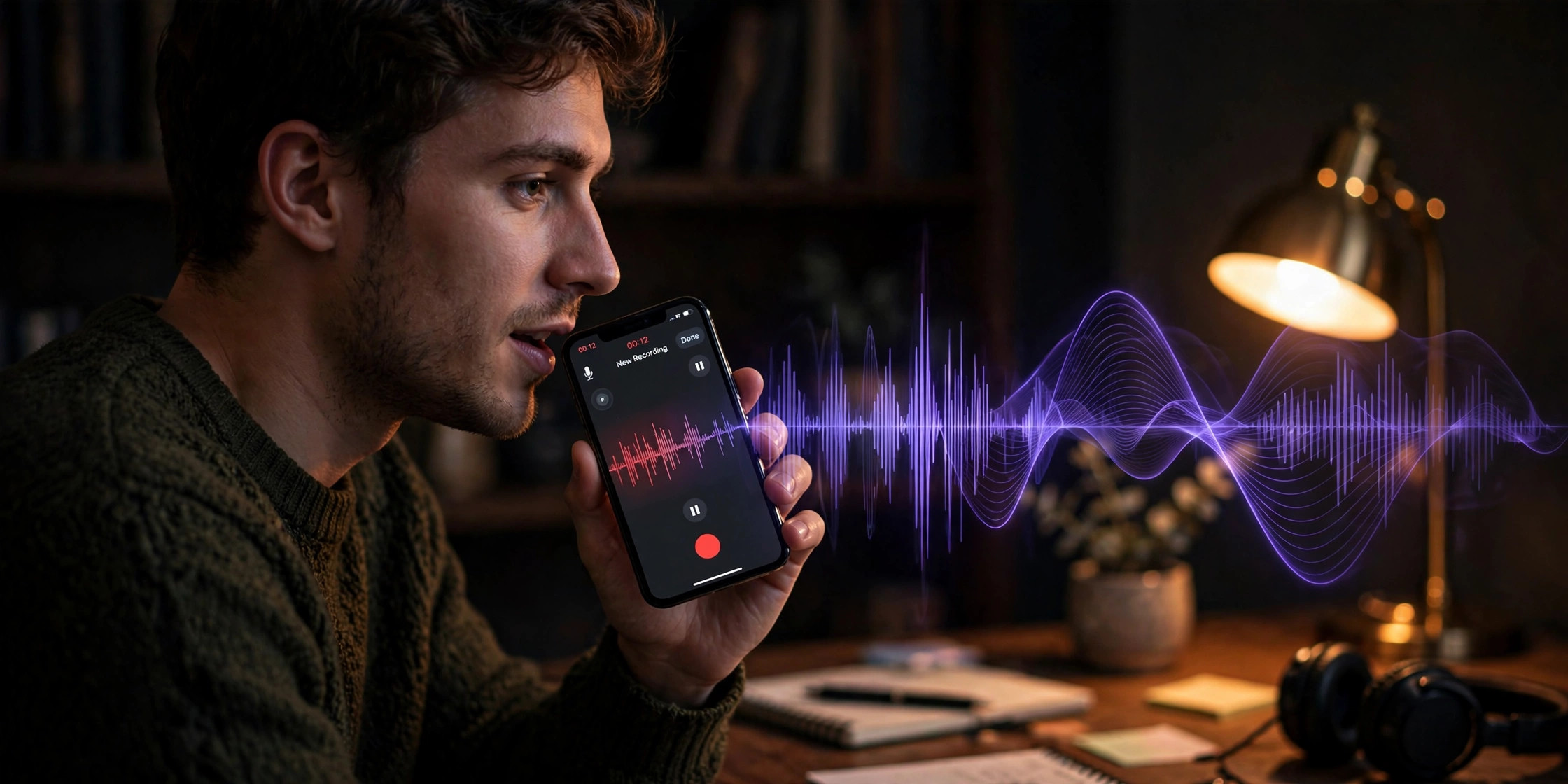
The fastest free method: open the Voice Memos app, tap your recording, and tap Transcript. You’ll have readable text in seconds — no new app, no upload, no cost.
That built-in option didn’t exist until iOS 18, which is why half the internet still tells you to play your memo into some sketchy transcription website. Things have moved on. As of iOS 26, your iPhone has several solid free paths from speech to text, plus one excellent free desktop option for the long, messy recordings.
All four methods below come with exact steps and honest limits — because the “best” one depends entirely on what your recording looks like. A 40-second reminder to yourself and a 90-minute lecture are different problems.
Method 1: Apple’s built-in transcription (iOS 18 and later)
Since iOS 18, the Voice Memos app transcribes recordings on its own. This is the method to try first: it’s already on your phone, it works offline, and it costs nothing.
How to do it:
- Open Voice Memos and tap the recording you want transcribed.
- Tap the ••• (more) button, then choose View Transcript. (Alternative route: tap Edit Recording, then the speech-bubble icon in the bottom-left corner.)
- The transcript appears — read it in full, search within it, and copy text out.
It works retroactively: memos recorded years ago get the same treatment. And unlike some Apple Intelligence features, transcription here doesn’t need a new iPhone — it runs on every model that can install iOS 18 or later. The transcript language follows your iPhone’s language settings, and once generated you can tap any word to jump the playback to that exact moment — handy for verifying a name or number the transcript got wrong.
The real limits:
- It’s a plain transcript. No speaker labels, no summary, no action items. Two people talking over each other becomes one undifferentiated block of text.
- Accuracy drops with background noise, mumbling, strong accents, and overlapping speech — like every transcription engine, just more noticeably with Apple’s on-device model.
- Language support covers the major languages but isn’t universal. Check yours before relying on it.
- You can’t polish the transcript inside Voice Memos. It’s a faithful record, not a finished note.
Method 2: The Notes dictation workaround
This is the old-school trick from before Apple added transcription, and it still works on essentially any iPhone: let the phone listen to itself.
How to do it:
- Open Notes and start a new note.
- Tap the microphone key on the keyboard to start dictation.
- Play your voice memo out loud — speaker on, volume up.
- Dictation types what it hears, in real time.
Why you’d still do this: it works on old iPhones that can’t run iOS 18, and it works for audio that isn’t in Voice Memos at all — a WhatsApp voice note, a video’s audio, anything your speaker can play.
Why you probably shouldn’t: it’s real-time, so a 20-minute memo takes 20 minutes. You need a quiet room. There’s no punctuation unless you say “comma” and “period” out loud (newer iOS versions add some automatic punctuation, but don’t count on it), and no way to skip the boring parts. One practical upgrade: play the audio from a second device instead of the same iPhone — it avoids feedback issues and slightly improves what the mic picks up. Even so, it’s a fallback, not a workflow.
Method 3: Aura Notes (when a transcript alone isn’t enough)
Apple’s transcript answers “what was said.” It doesn’t answer “what mattered.” That’s the gap Aura Notes fills — a voice-notes app that records or imports audio, transcribes it, and then does something with the text.
How to do it:
- Record directly in the app, or import an existing voice memo or audio file — from Voice Memos, tap the share button on a recording and send it to Aura Notes.
- You get a full transcript you can read, search, and play back against the audio.
- On top of that: an AI summary with key points and action items, speaker detection that labels who’s talking, and an Ask AI chat where you can query the recording — “what did they say about the budget?”
- Everything is searchable across all your notes, organized into folders, and you can export as PDF, text, or markdown.
When this is the right call: meetings, lectures, interviews — anything where you’d otherwise re-read a wall of text hunting for the two sentences that mattered. The summary and Ask AI turn an hour of audio into a 30-second read.
The honest trade-off: it’s a separate app (free to download, with paid tiers for heavier use), and the AI features need an internet connection. If all you want is raw text from a short memo, Method 1 is faster. But for anything you’d need to act on later, the summary pays for itself immediately.
Method 4: Desktop tools — Whisper and MacWhisper (for long recordings)
For the long, difficult stuff — a two-hour lecture, a noisy interview — the strongest free option isn’t on your phone at all. It’s Whisper, an open-source transcription model you can run on your Mac.
The easiest path is MacWhisper, a free Mac app that wraps Whisper in a normal interface:
- Get the memo to your Mac — AirDrop it from the share sheet in Voice Memos, or let it sync via iCloud.
- Open MacWhisper, drop the audio file in, and pick a model (larger means more accurate but slower).
- Get a transcript you can export as text, subtitles, or markdown.
Why bother: Whisper is widely regarded as the most accurate free transcription engine available, especially for accents, technical vocabulary, and less-than-perfect audio. It handles hours-long files without breaking a sweat, works in dozens of languages, and everything runs locally — your audio never leaves your Mac. As a rule of thumb for model choice: the small model is fine for clear speech and runs fast; step up to large only for difficult audio or languages with less training data, and expect it to take a while on anything but an Apple Silicon Mac.
The catches: you need a Mac, the first run downloads a model file of a few hundred megabytes, and the biggest models are slow on older machines. For a five-minute memo this is overkill — but for the recording that actually matters, it’s the best free accuracy you can get.
Accuracy compared: the same recording through all four
An honesty note first: this isn’t a lab report with error percentages. I haven’t run all four engines over one controlled recording in a scoring harness. What follows is how the four compare based on how each engine works and what’s documented about them — useful for choosing, not a benchmark.
| Apple Voice Memos | Notes dictation | Aura Notes | Whisper (Mac) | |
|---|---|---|---|---|
| Best at | Clear, single-speaker memos | Anything playable on speaker | Meetings and interviews you need to use later | Long, noisy, or accented audio |
| Speaker labels | No | No | Yes | Depends on setup |
| Summary | No | No | Yes | No |
| Offline | Yes | Mostly | Recording yes; AI features need connection | Yes |
| Speed | Seconds | Real-time | Minutes | Minutes (model-dependent) |
In practice: for a clear memo recorded in a quiet room, all four give you essentially the same words — pick by convenience. The differences show up at the edges. Overlapping speakers? Only Aura labels them. Heavy accents or background noise? Whisper pulls ahead. Need the gist rather than the transcript? Only Aura summarizes. Dictation is the weakest on accuracy because it’s transcribing through your speaker — every room echo and volume wobble costs you words.
Which method for which situation
- Quick memo, just need the words → Method 1. Already on your phone, takes seconds.
- Old iPhone, or audio from another app → Method 2. The dictation trick works everywhere.
- Meeting, lecture, or interview you need to act on → Method 3. The transcript is table stakes; the summary and Ask AI are the point.
- Long recording, bad audio, or maximum accuracy → Method 4. Whisper on a Mac is the strongest free engine.
- Needs to be searchable forever → Method 3. Searchable, organized notes beat a pile of transcript text files.
The short version: start with Voice Memos — it handles most memos in seconds for free. When a recording matters enough that you’d re-read it, use a tool that does the re-reading for you.
Frequently asked questions
Can iPhone transcribe automatically?
Partly. Voice Memos transcribes on demand — you tap Transcript on each recording; it doesn’t transcribe the moment you hit stop. If you record audio inside a Notes note (iOS 18 and later), you get a live transcript as you speak. True “record and forget” background transcription isn’t built into iOS.
Is there a length limit?
No hard limit in Voice Memos — hour-long recordings transcribe, though processing takes longer and very large files eat storage. Dictation sessions cap out after a few minutes of continuous speech, so it’s a poor fit for anything long. MacWhisper handles multi-hour files comfortably; that’s its home turf.
Does it work offline?
Voice Memos transcription is on-device: yes, fully offline. Dictation runs on-device on modern iPhones. Aura Notes records offline and transcription syncs when you’re back online, but the AI summaries need a connection. MacWhisper is entirely local — nothing ever leaves your Mac.
Can it handle accents?
Reasonably, with caveats. Every engine here trains on diverse speech, but strong accents, fast talkers, and background noise degrade all of them. In general, Whisper handles varied accents best; Apple’s on-device model is tuned for clear speech. If accuracy matters, the single biggest lever is recording quality — speak clearly, get close to the mic. That helps more than switching apps.
How do I transcribe an old voice memo?
Open it in Voice Memos and tap Transcript — the feature works retroactively on recordings from years ago. Or share it outward: use the share sheet to send the audio to Aura Notes for a transcript plus summary, or AirDrop it to a Mac for MacWhisper.